How Do I Add a Deposit Line So the Balance Due Updates?
To add a deposit to an invoice, enter the deposit as a line item or record it in an “Amount paid” field—depending on whether you are requesting the deposit or documenting one already received. The invoice should then show the original total, the deposit, and the remaining balance due. Those are different situations, so choosing the right method is the key to getting the math right.
If you are asking a client to pay a deposit now, include it as a clearly labeled charge, such as “50% project deposit.” If the client has already paid, do not add that payment as another charge. Record it as an amount paid or payment received so the balance due goes down instead of up.
This guide explains which fields to use, how to check the calculation, and how to export a clear invoice quickly. It also covers payment terms and due dates, including the date math behind Net 30.
First, decide what “deposit” means on this invoice
People use “deposit” to describe both an upfront amount they are requesting and money a client has already paid. Those should be shown differently on a balance due invoice.
Situation What to enter Effect on balance due You are requesting an upfront deposit Add a deposit charge as a line item, or use a dedicated deposit-request feature if available. It is part of the amount the client owes. The invoice total may be the deposit amount alone or the full project amount, depending on your setup. The client has already paid a deposit Enter the payment in an “Amount paid,” “Payments,” or similar field. The amount paid is subtracted from the invoice total.Before you send anything, check whether the invoice is asking for the deposit or acknowledging it. A charge increases the total; a payment reduces what remains due. Entering a received deposit as a regular line item can accidentally make the client’s bill larger.
How to show a deposit that the client still needs to pay
If the deposit is the only amount due right now, make that clear in the line item description and in the payment terms. For example, you might invoice a 40% project deposit before work begins. If your invoice tool supports a deposit or partial-payment request, use that feature and confirm that the displayed balance due is the amount you intend to collect now.
- Enter your business details. Fill in the “From” field with your business or personal name, contact details, and any other required information.
- Enter the client details. Complete “Bill to” with the customer’s correct name and billing address. Confirm the client record before sending; a correct total on an invoice addressed to the wrong party is still a problem.
- Add the project line item. Describe the work clearly, with a quantity and rate if applicable.
- Show the deposit request. Add a separate line labeled “Project deposit—40% due before work begins,” or use a deposit field if the tool provides one. State whether the amount is fixed or a percentage.
- Set the terms and due date. Write when the deposit is due, such as “Due upon receipt” or “Due by [date].” Do not rely on a vague note like “deposit required” if the client needs to know when to pay.
- Review the totals. Check the subtotal, taxes, any discounts, and the balance due. Make sure the balance due matches the amount you are requesting now.
There are two common invoice layouts. One shows only the deposit as the current invoice total. The other shows the complete project value, the deposit due now, and a remaining future amount. Either can be useful, but the invoice must label what is payable now and what is not yet due. Avoid presenting the full project price as currently payable if your agreement only requires the deposit at this stage.
Example: requesting a deposit
Suppose the project price is $2,000 and your agreement calls for a 40% deposit before work starts. The deposit is $800. You could issue an invoice for $800 titled “Project deposit—40% of $2,000,” with the deposit due date in the terms. The remaining $1,200 would be billed later under the schedule you agreed with the client.
Alternatively, if your invoicing system supports milestones, you could show the $2,000 project total, identify $800 as due now, and state that $1,200 is due at a later milestone. Check that the system’s balance due reflects the amount currently payable, not an amount that confuses the client about future charges.
How to record a deposit the client has already paid
If the invoice is for the full work and the client has already paid a deposit, enter the full amount of the work as the invoice total and record the deposit as a payment or amount paid. The calculation should be:
Balance due = invoice total − amount paid
For example, if the invoice total is $2,000 and the client has already paid an $800 deposit, the balance due should be $1,200. Entering the $800 as a positive line item would produce the wrong result because it would add a charge. Instead, record it as payment received, with the date and payment method if those fields are available.
Example: invoice total and payment received
Invoice calculation Amount Work and approved charges $2,000 Deposit already received −$800 Balance due $1,200Some templates show a negative line called “Deposit paid,” while others provide a separate amount paid field. Either approach can the-invoice-generator.net work if the invoice clearly distinguishes the payment from the charges and the total updates correctly. If you use a negative line item, verify how the tool treats tax: a payment credit generally should not be treated as a taxable product or service charge. Follow the applicable accounting and tax rules for your location.
Invoice fields that matter
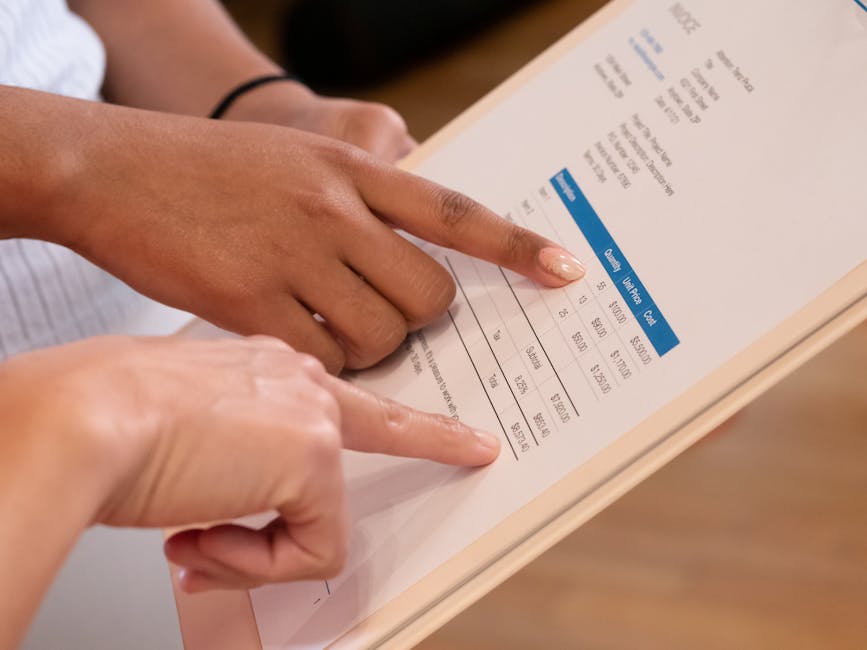
A deposit is easier to understand when the rest of the invoice is complete. At a minimum, review these fields before exporting or sending it:
- From: Your business name, contact details, and other identifying information the client needs to process payment.
- Bill to: The customer’s correct legal or billing name and address, as appropriate.
- Invoice number: A unique identifier for this invoice. Check your numbering sequence and confirm you have not reused a number.
- Invoice date: The date you issued the invoice.
- Due date: The actual date payment is expected, not just a term label.
- Line items: Clear descriptions, quantities, rates, and amounts. Label a deposit request or a received deposit so its purpose is unmistakable.
- Subtotal, tax, and total: Confirm that each calculation is right and that tax is applied to the correct items under the rules that apply to you.
- Amount paid: Record payments already received here, if the invoice tool has this field.
- Terms and notes: Explain when payment is due, what the deposit covers, and any relevant milestone or payment instructions.
Use plain descriptions. “Deposit” alone may not tell a client whether it is a new charge or a payment already made. Phrases such as “Deposit due before scheduling” and “Deposit received on [date]” remove that ambiguity.
Payment terms and due date logic
Terms tell the client when payment is expected. “Due upon receipt” means payment is requested as soon as the client receives the invoice, but it does not provide a specific calendar date. If a definite date is important, enter it explicitly.
For Net 30, calculate the due date from the invoice date according to the convention you use and state the resulting date on the invoice. For example, if an invoice is dated March 1, 30 calendar days later is March 31. If your agreement or local practice counts the invoice date differently, follow that rule consistently. Do not just type “Net 30” and assume the software has interpreted the starting date the way you intended—check the displayed date before sending.
Be equally precise with deposits. “50% deposit” describes the amount but not the deadline. Add wording such as “50% deposit due by April 15” or “Deposit due before work begins,” and include a specific date when the client needs one. If your invoice tool automatically fills a due date, verify it against the terms you agreed to.
Fast PDF export without creating an account
For a one-off invoice, a no-signup invoicing tool can save time: enter the details, review the totals, and export a PDF without making an account first. A browser-based option such as the-invoice-generator.net can be useful when you want to prepare an invoice quickly. Look for clearly labeled actions such as Download PDF and Save & Send, then choose the action that matches what you need to do next.
Before downloading, open the invoice preview and inspect the final page layout. Confirm that the deposit label, payment status, amount paid, and balance due are visible and not cut off. Then save the PDF with a recognizable filename, such as “Invoice-1042-Client-Name.pdf.” Keep a copy for your records and check that the invoice number is unique in your own tracking system.
No-signup use and local drafts can be convenient, but do not assume every browser tool stores information in the same way. Check its privacy explanation to understand whether draft data stays in your browser, is sent to a server, or is lost when you clear site data. A local draft can be temporary: it may not follow you to another device or survive clearing browser storage. Export and securely back up important invoices rather than treating the browser as your only filing system.
When evaluating a tool, look for a straightforward explanation of data handling and analytics. Google Analytics is one example of an analytics service a website may use; its presence or absence depends on the site’s configuration. If privacy matters for your workflow, review the site’s privacy notice and avoid entering sensitive information that the invoice does not require.
When to use Continue with Google
Some services offer a Continue with Google sign-in option for features such as saving invoices across devices or maintaining an account. You may not need to sign in to create and export a basic PDF, so check whether the tool allows no-signup invoicing before choosing an account-based workflow. Signing in can be convenient, but it is not the same thing as downloading a file, and it may connect your use of the service to an account.
If you are comparing paid options, read the price and cancellation terms before subscribing. For example: Pro: $39 a year ($3.25 a month, 35% off) or $5 a month. US dollars, plus tax where it applies. Cancel any time. Confirm what the plan includes, whether the annual amount is billed upfront, and whether export is available on the free or no-signup option.
Final check before you send the invoice
Use this short checklist to catch the mistakes that most often cause deposit confusion:
- Is this invoice requesting a deposit, or recording a deposit already received?
- Is the deposit in the right place—as a charge when requested, or as an amount paid when received?
- Does the balance due equal the invoice total minus payments already received?
- Are the “From” and “Bill to” details correct?
- Is the invoice number unique?
- Do the terms explain when payment is due, and does the calendar due date match those terms?
- Are the deposit description, tax, and totals clear in the PDF preview?
- Have you saved a copy of the finished invoice somewhere you can find it later?
The simplest rule is to keep charges and payments separate. A deposit you are asking the client to pay belongs among the amounts due; a deposit the client has already paid belongs in the payment record or amount paid field. Once those entries are in the right places, the balance due should be easy to verify—and easy for the client to understand.